
PrintFactory Output Path Setup Guide
1. Before Setting Up the Output Path
1.1 Confirm Prerequisite
Before starting to set up the output path for PrintFactory, please ensure the following conditions are met:
- PrintFactory software has been installed correctly.
- Your computer is successfully connected to the network.
After confirming these prerequisites, you can proceed to set up the output path.
2. Setting Up the Output Path
2.1 Create a New Output Folder
Right-click on your computer desktop and create a new blank folder.
Note: This folder will be specifically used to save all .prt print files output from PrintFactory. It is recommended to give it a clear name, such as “PrintFactory Output Files”.

2.1-Create-New Folder
2.2 Launch PrintFactory Software
Double-click the “PrintFactory RIP” icon on the desktop to open the software.

2.2- Launch-PrintFactory-Software
2.3 Open the Output Path Settings Window
The way to open the output path settings window differs depending on whether it is your first time opening the software or not:
- First time opening the software: If this is your first time opening PrintFactory, a window named “Output Folder Selection” will usually pop up automatically. In this window, first check the “Folder” option, then click the folder icon next to it
 .
.
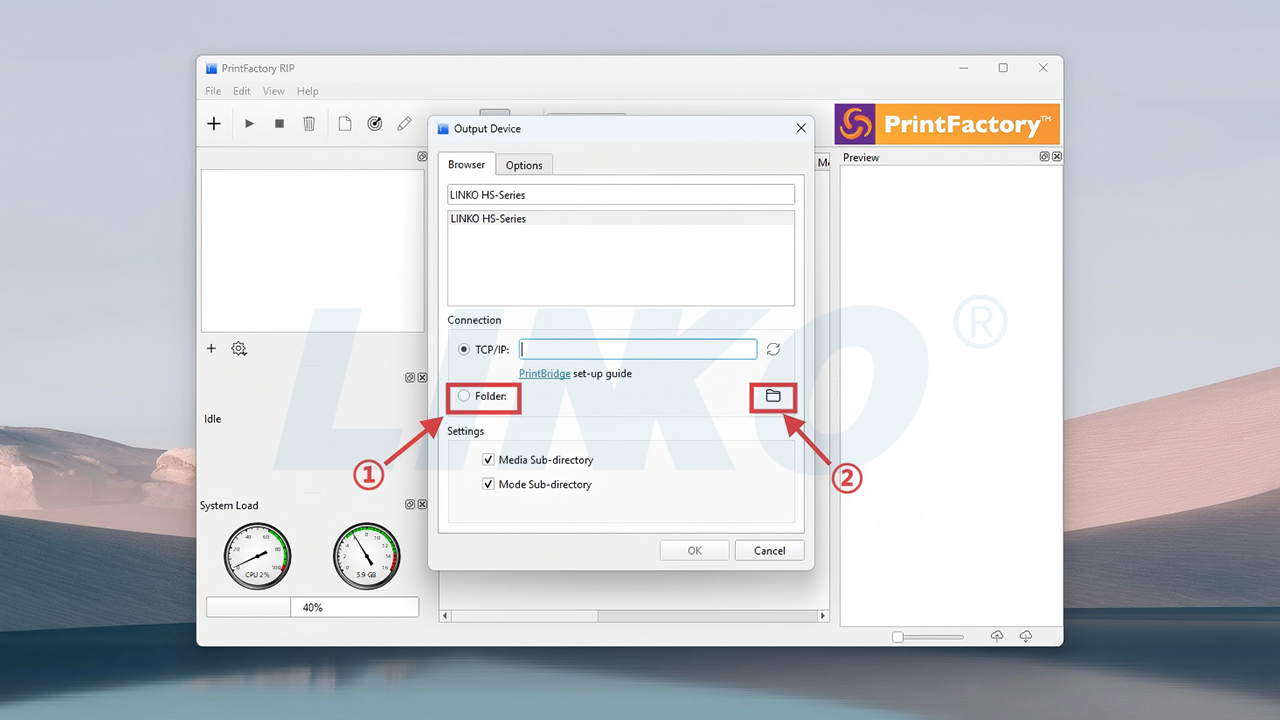
2.3-1-Check-Folder-and-Click-Floder-Icon
- Not the first time opening the software: If the output path settings window does not pop up automatically, you need to double-click the printer icon on the left to manually open the output path settings window.

2.3-2-Double-Click-Printer-Icon
2.4 Select the Output Folder
When the “Select Folder” window pops up, select the new folder you created in step 2.1 for saving PrintFactory output files. After selecting the folder, click “Select Folder” in the lower right corner of the window to confirm.

2.4-Select-Output-Folder
2.5 Configure Folder Options and Confirm
To ensure files are saved directly to the folder you selected, please uncheck the “Media Sub-directory” and “Mode Sub-directory” options. After unchecking, click the “OK” button in the lower right corner to save the settings.
Explanation: Unchecking these options will make PrintFactory output files directly to your specified folder, instead of creating subfolders inside it based on media type or print mode.

2.5-1-Uncheck-Subdir-Options

2.5-2-Click-OK
2.6 Output Path Setup Complete
You have now successfully completed the output path setup for PrintFactory software.
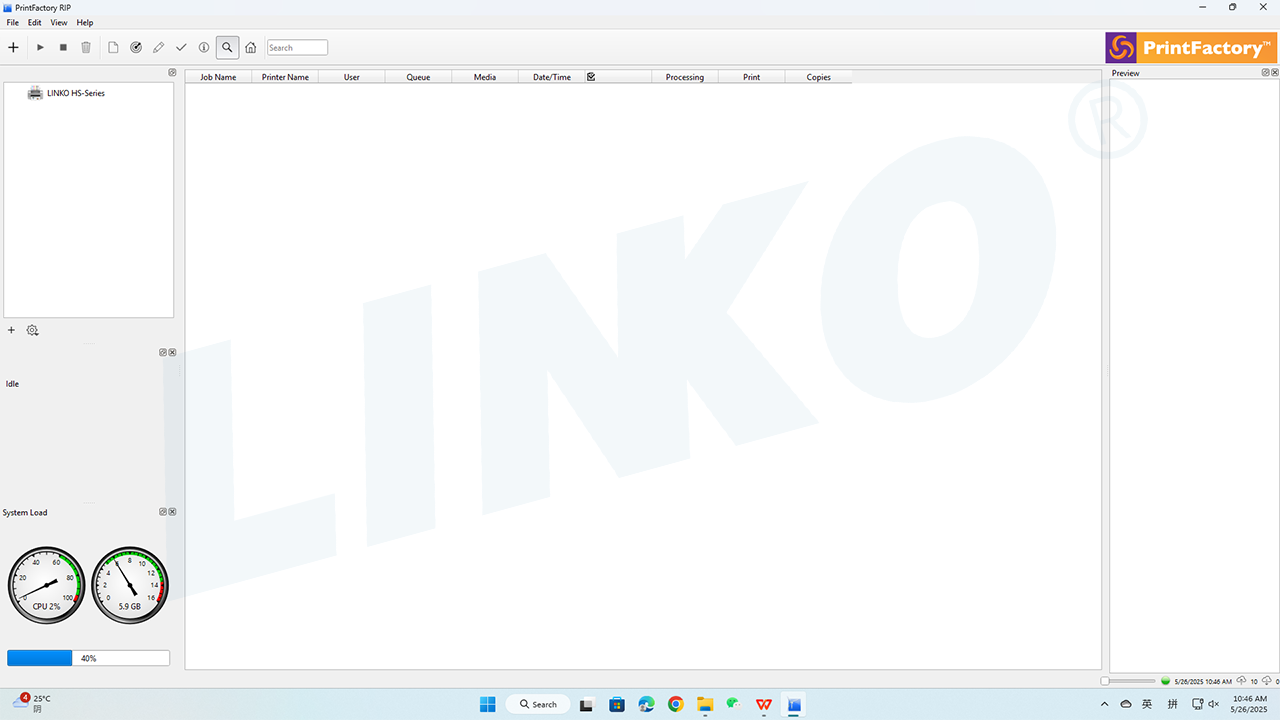
2.6-Setup-Complete-Output-Path
3. Next Steps
Congratulations! The output path setup for PrintFactory software is now complete!
Next, please refer to the PrintFactory Software Loading Curve Guide, which will guide you on how to load and set up print curves. This is a crucial step for ensuring print color accuracy.