
PrintFactory Loading Curve Guide
1. Before Loading the Curve:
- Please prepare the ICC profile (color curve) in advance and place it on your computer desktop or in a specific folder where you can easily find it.
- When loading the ICC profile, be sure to select the file that matches your printer configuration. Avoid importing mismatched curves, as this may cause color deviations in your prints.
What is an ICC Profile (Curve)?
An ICC profile is like a “color instruction manual.” It ensures different devices speak the same color language, guaranteeing that the colors you see, others see, and what gets printed are as consistent as possible.
Why Do You Need an ICC Profile (Curve)?
To ensure the printer accurately reproduces the colors you need, we use the ICC profile—this “color instruction manual”—to give the printer specific and unified commands.
2. How to Import an ICC Profile into PrintFactory
2.1 Launch the PrintFactory RIP Software
On your computer desktop, find and double-click the PrintFactory RIP software icon to launch it.

2.1-Launch-PrintFactory-RIP-Software
2.2 Open the Calibrator Window
In the upper left corner of the PrintFactory software interface, find and click the target icon . In the pop-up “Print Factory Calibrator” window, find and click the “Import” icon
 .
.

2.2-1-Click-Target-Icon

2.2-2-Click-Import-Icon
2.3 Import the Curve File
In the file selection window that appears, locate your previously saved ICC profile (usually with the file extension .icc or .icm). Select the curve file you want to import, then click the “Open” button.

2.3-1-Select-ICC-profile

2.3-2-Click-Open
2.4 Wait for the Import Summary Window and Confirm
The software will begin importing the curve file. The import process may take some time; please be patient. Once the “Import Summary” window pops up, click the “OK” button to confirm.

2.4-Wait-Import Summary Window-and-Click-OK
2.5 Select the Media Curve
In the list on the left side of the Calibrator window, find and click the corresponding curve in the “Media” list.
Note: After importing the ICC profile, the system will display the corresponding media name in the “Media” list based on the file’s built-in information. If you only imported one curve file, there will typically be only one relevant and unique option shown here. If there are multiple choices, be sure to select the curve that matches your current printing media.

2.5-Select-Media-Curve
2.6 Select the Mode Curve
In the Calibrator window, click the “CMYK” curve in the “Mode” list.
Note: This refers to the color mode for printing. For standard full-color printing, the CMYK mode is usually selected.

2.6-Select-Mode-Curve
2.7 Check and Check the “Print Mirrored” Option
Check if the “Print mirrored” option is selected. If it is not checked, please check the “Print mirrored” box first, then click the “Save” icon in the upper right corner to close the window.
Note: For processes like DTF, which require transferring the pattern from the transfer film to the substrate, this option must be checked. For processes like UV direct-to-substrate printing that do not require a mirror effect, this option should not be checked.

2.7-Check-Mirrored-and-Click-Save
2.8 Complete Loading the Curve
After saving, close the Calibrator window.

2.8-1-Close-Calibrator-Window
You have now successfully completed the process of loading a curve in the PrintFactory software.
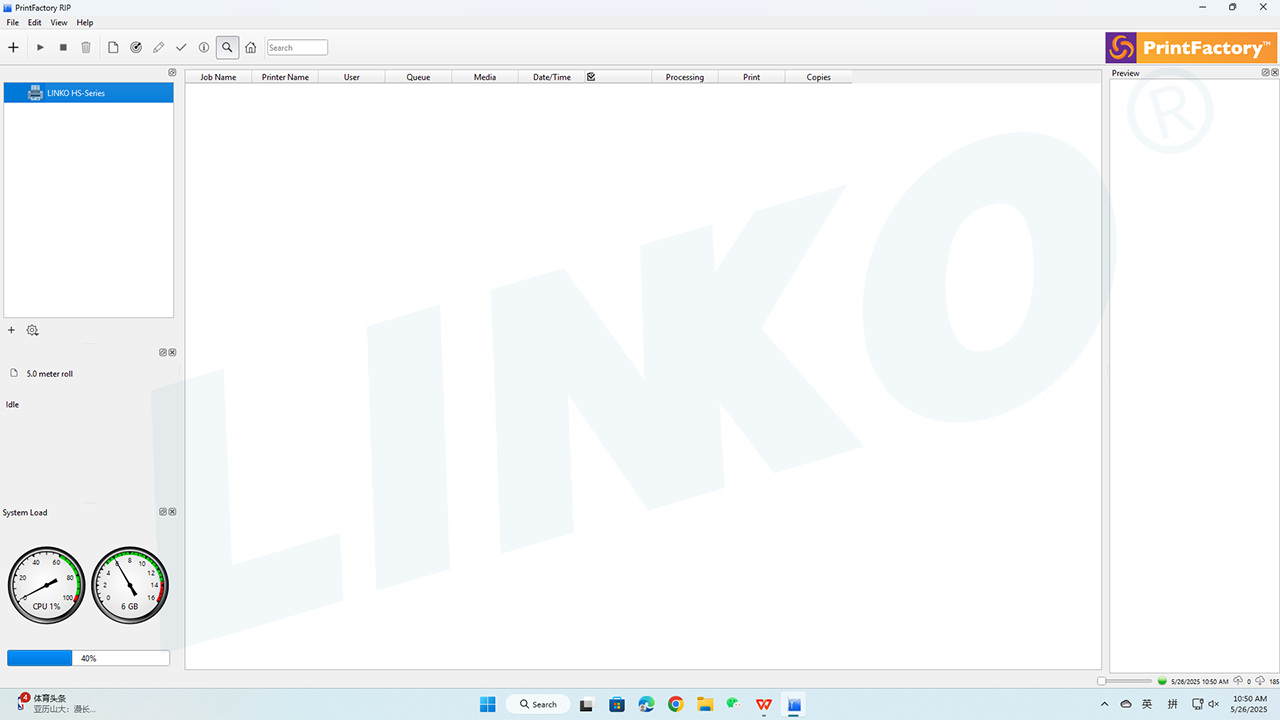
2.8-2-Complete-Load-Curve
3. Next Steps
Congratulations! You have successfully completed the curve loading process for the PrintFactory software!
Next, please refer to the PrintFactory Software Language, Unit of Measurement, and Preference Settings Guide to configure the language, unit of measurement, and preferences in PrintFactory.