Photoshop Image Editing Guide (For DTF, UV DTF, and UV Printing)

Preparation before use:

Before printing, some image editing work may be needed — such as removing backgrounds, combining images, adjusting colors, adding layers, or changing image size. These tasks are usually done using Photoshop, a professional image editing software.

Although Photoshop is not a LINKO product, we’re happy to support our customers by offering a free installation file and remote assistance if needed. This is part of our extra technical support to help you set up the software smoothly. If you need help, feel free to contact LINKO Technical Support.

Computer and File Preparation

1. Computer Requirements

To run Photoshop smoothly, we recommend at least 8GB of RAM, and a processor like Intel i5 or AMD Ryzen 5 or better. A faster computer helps speed up your editing work.

2. Prepare Your Print File

Please get your image files ready before printing. For best results, we suggest using high-resolution source files, such as AI, PSD, or high-quality JPG/PNG images.

Remember the file location (like Desktop or a common folder) and name it clearly so you can easily find it later.

Why Use Photoshop to Edit Print Files?

For DTF, UV DTF, or UV printing, well-prepared image files ensure excellent print results. Photoshop helps you:

  • Make colors more accurate and attractive
  • Keep the image clear and sharp
  • Remove extra background cleanly
  • Create spot color channels to make special colors more vivid

Contents

  1. Photoshop Pre-Print Setup
  2. Image Background Removal
  3. Creating Spot Color Channels for DTF/UV Printing
  4. Saving and Exporting the Final File

1. Photoshop Pre-Print Setup

1.1 Open Your Image for Printing

1.1.1Launch Photoshop

Double-click the Photoshop icon on your desktop to open the program.

launch-photoshop-desktop

launch-photoshop-desktop

1.1.2 Click “[File]” in the top-left corner.

click-file-menu

1.1.3 Select “[Open]” from the drop-down menu.

select-open-from-menu

select-open-from-menu

1.1.4 Locate and open your file:

In the file browser window, find your prepared print image. Select the file, then click “[Open]” at the bottom-right corner.

open-image-file

open-image-file

1.1.5 Confirm successful opening

Your selected image will now appear in Photoshop’s workspace. If you see the image clearly, it has opened successfully.

image-opened-in-workspace

image-opened-in-workspace

1.2 Unlock the Image Layer(Skip this step if already unlocked)

Some images open with a locked layer by default to protect the original. You need to unlock it before editing.

1.2.1 Check Layer Lock Status

On the right side of Photoshop’s workspace, check the “LAYERS” panel. If you see a lock icon next to your image layer, it means the layer is locked and must be unlocked before you can edit it.

If the Layers panel is not visible, go to Window > Layers to show it.

locked-layer-icon

locked-layer-icon

1.2.2 Unlock the Layer

Double-click the locked layer. In the small window that appears, click “OK” to unlock it.

unlock-layer-double-click

unlock-layer-double-click

1.2.3 Confirm Layer Unlock Status

When the lock icon disappears and the layer name changes to “Layer 0“, The layer is now unlocked and ready for editing.

layer-unlocked-layer

layer-unlocked-layer-0

1.3 Modify Color Mode to CMYK(Skip if already in CMYK mode)

Our printers use CMYK (Cyan, Magenta, Yellow, Black) color mode. To ensure print colors match your screen, convert your image to CMYK. Skip this step if already set to CMYK.

1.3.1 Check the Current Color Mode

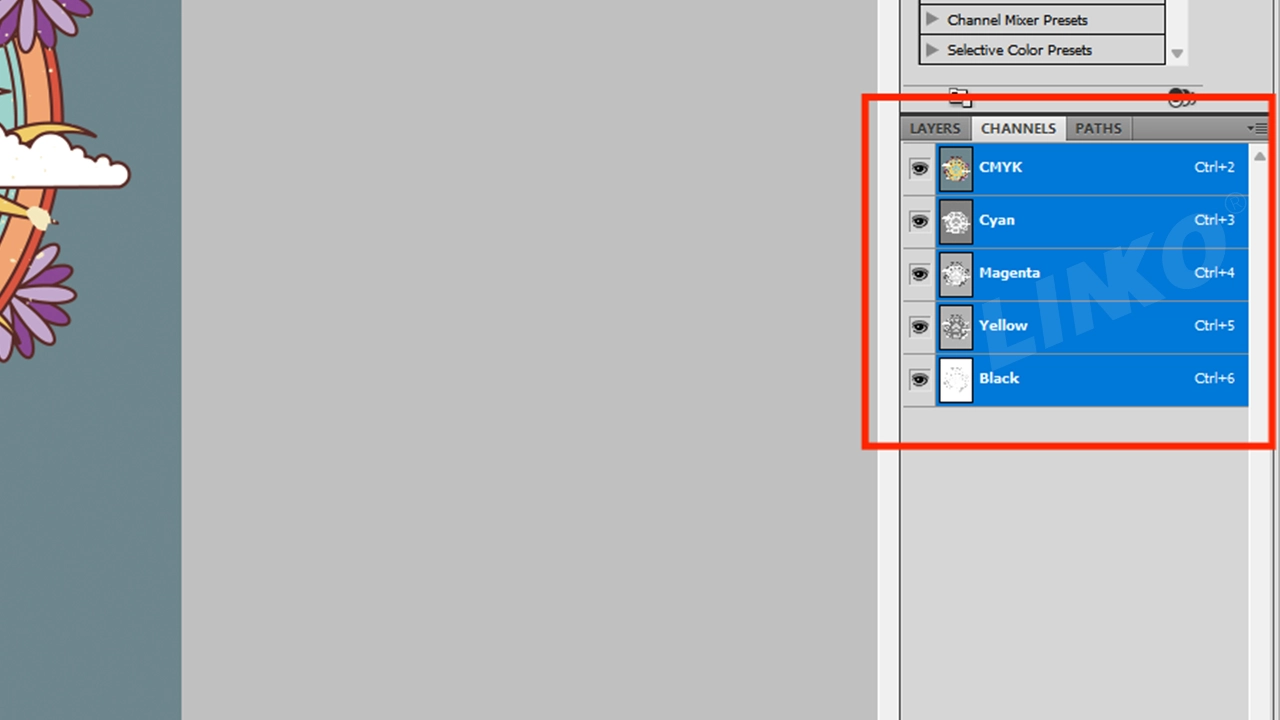
On the right side of the Photoshop interface, click the “CHANNELS” panel. It is usually located next to the “LAYERS” panel.
In the Channels panel, you can check the current color mode of your image based on the channels displayed:

  • If the image is already in CMYK mode:
    You will see four channels named Cyan, Magenta, Yellow, and Black.
    → In this case, your image is already in CMYK mode, and you can skip the following steps.
  • If the image is in RGB mode (as in this example):
    You will see three channels named Red, Green, and Blue.
    → This means your image is currently in RGB mode, and you need to convert it to CMYK in the next step.

CHANNELS” panel

rgb channels in panel

1.3.2 Switch Color Mode

Click “Image” in Photoshop’s top menu bar.

open-image-menu

Select “Mode” → Click “CMYK Color”.

select-mode-dropdown

select-mode-dropdown

convert-to-cmyk

convert-to-cmyk

1.3.3 Confirm Conversion

A dialog box will appear asking: “Convert to CMYK?” → Click “OK”

 confirm-cmyk-conversion

1.3.4 Verify Color Mode Update

Go to the “CHANNELS” panel (right side of Photoshop). Confirm it shows four channels:
Cyan, Magenta, Yellow, Black → CMYK mode is activated.

channels-updated-cmyk

channels-updated-cmyk

1.4 Optimize Image Resolution

Optimizing image resolution ensures print clarity. Higher resolution = sharper image.

1.4.1 Click “Image” in Photoshop’s top menu bar → Select “Image Size”.

open-image

open-image

open-image-size

open-image-size

1.4.2 Set Resolution to 300

In the “Image Size” window, find the “Resolution” field. Change the value to 300, and make sure the unit next to it shows “Pixels/Inch”.
(Setting the resolution to 300 DPI ensures your image meets the standard for print-ready clarity.)

set-resolution-300dpi

1.4.3 After making changes, click “OK” in the top-right corner to save settings.

click-ok-resolution

click-ok-resolution

1.4.4 Adjust View

The image may look zoomed in. Hold the Alt key and scroll your mouse wheel to zoom and adjust the view.

zoom-out-alt-scroll

 zoom-out-alt-scroll

1.5 Crop the Image

Cropping removes unwanted areas, keeping only the print pattern. This reduces file size and saves printing materials/time.

1.5.1 Select Crop Tool

In Photoshop’s left toolbar, click the Crop Tool !

Crop tool

select-crop-tool

1.5.2 Adjust & Apply Crop

An adjustable crop border appears on your image. Drag the corners or edges to resize and reposition. The part inside the box will be kept. Press Enter to apply.

adjust-crop-frame

adjust-crop-frame

crop-preview-before-applying

1.5.3 The crop is applied. (You will now see only the selected area. The rest is removed.)

After cropping, only your selected area remains visible.

cropped-image-result

cropped-image-result

2. Image Background Removal

When printing only the pattern (without background), you must remove the background to make it transparent.

2.1Select Magic wand

In Photoshop’s left toolbar: Locate the Magic Wand icon (or Quick Selection Tool, usually shaped like a wand).

Right-click the icon

Magic Wand Tool

, then choose “Magic Wand Tool” from the menu.

Choose-Magic-Wand-Tool

Choose “Magic Wand Tool”

2.2 Select Background Areas

Left-click on the background area you want to remove.
Flashing dashed lines will appear around it → Background is now selected!

Click on the background area

Flashing dashed lines appear in the background area

2.3 Check & Add Missing Background Areas to Avoid Missing Selections

To ensure the background is completely removed, it’s recommended to zoom in on the image for a detailed check.
Hold the Alt key and scroll your mouse wheel to zoom in.
Carefully inspect the selection, especially hollow areas inside the pattern, to see if they have been selected.
Make sure the Magic Wand Tool is still active.
Then, hold down the Shift key on your keyboard.
While holding Shift, left-click on any unselected background areas, including inner hollow parts of the pattern.
→ These areas will also become surrounded by flashing dashed lines, indicating that they are now part of the selection.
(▲ Holding Shift allows you to add multiple areas to the current selection.)
If you select the wrong area by mistake, press Ctrl + Z to undo the last step.

Zoom in on the image

Select-hollow-areas-inside-the-pattern

Select hollow areas inside the pattern

Select-Done

 Select Done

2.4 Remove Background

Make sure all background areas (including hollow parts) show dashed selection lines.
Press the Delete key.
→ The background will disappear, and a gray-white checkered pattern will appear, which means the area is now transparent.

Note: If pressing Delete doesn’t work, the layer might be locked. Double-click the layer in the Layers panel to unlock it, then try again.

Background-removal

Background removal

Background removal is complete! You may now continue with Creating Spot Color Channels for DTF/UV Printing
Please refer to the next section.

3. Creating Spot Color Channels for DTF/UV Printing

Spot color channels are an extra map for the printer.
In DTF/UV printing: You need colored ink. You also need white ink for a base on dark clothes (makes colors bright).Or use varnish for shiny areas.
Spot color channels tell the printer where to put: W (White ink),V (Varnish) and other custom colors (like FY for Fluorescent Yellow).

3.1 DTF White Ink & Spot Color Channel Setup

3.1.1 Open the “LAYERS” Panel

First, click the “LAYERS” panel on the right side of Photoshop.

LARYER-panel

“LARYER” panel

3.1.2 Select the Design

Hold down the Ctrl key.
Click the thumbnail of the “Layer 0” with your mouse.
You will see blinking dashed lines around the design — this means it’s selected.

Click-the-thumbnail-of-the-Layer0

Click the thumbnail of the “Layer 0”

Correct–Clicking-the-layer-thumbnail

✅ Correct – Clicking the layer thumbnail

Incorrect – Clicking-outside-the-layer-thumbnail

❌ Incorrect – Clicking outside the layer thumbnail

Select -pattern

Select pattern

3.1.3 Reduce Selection (Contract)

To prevent white ink from showing outside color areas during printing, make the white ink layer slightly smaller than the color layer.
Click “Select” in Photoshop’s menu bar.
Choose “Modify”.

Click_Select

Click “Select”

Choose-Modify

Choose “Modify”

In the pop-up menu, click “Contract”.

Click -Contract

 Click “Contract”

Set the contract value:

Enter 1-3 pixels (smaller value for simple designs, larger for complex ones).
Example: Set to 3 pixels in this demo.
Click “OK” to confirm.

Contract-1-3-pixels

Contract 1-3 pixels

After contracting:You’ll see dashed lines inside the design edges — this means the white layer will be smaller than the color layer.

Dashed- lines-inside-the-design-edges

Dashed lines inside the design edges

3.1.4 Create White Spot Channel (W)

Go to the “CHANNELS” panel (right side of Photoshop).
Click the panel menu icon (top-right corner).
Select “New Spot Channel”.

CHANNELS _panel

“CHANNELS” panel

Select-New-Spot-Channel

Select “New Spot Channel”

Set Up the Spot Channel:

Name: Type “W1”
(Critical! Must be exact. “W” = White ink)
Solidity: Set to 100% (Full white ink coverage)
Color: Leave as-is (Only for display in Photoshop)
Click “OK”.

Set-Up-the-Spot-Channel

Set Up the Spot Channel

The red area on screen shows where white ink will be applied.

Note: This red overlay is just a Photoshop preview and will not affect the actual print color.

Click-the-CMYK-channel

white ink printed area

3.1.5 For Custom Spot Colors (e.g. Fluorescent):

Clear CMYK areas where you want only custom ink (like Fy Fluorescent Yellow).
(This stops CMYK ink from mixing with your spot color)
In the “CHANNELS” panel, click the CMYK channel.
→ All CMYK channels will select automatically.

white-ink-printed-area

Click the CMYK channel

All CMYK channels are selected

Prepare Custom Spot Color Area

Select the Magic Wand Tool  (left toolbar).

Select the Magic Wand Tool

Click the design areas for spot color (e.g. letters “P” and “A”).
→ Tip: Hide the “W1” channel (click eye icon) for better visibility.
To select multiple areas: Hold Shift + Click each part.

Hide-the-W1-channel

Hide the “W1” channel

Select-the-Magic-Wand-Tool

Select the Magic Wand Tool

Select-areas-for-spot-color

Select areas for spot color

Remove CMYK Overlap
Then press Delete key.
→ This clears selected areas from CMYK channels (makes transparent).
Why? Prevents CMYK ink mixing with custom spot color ink. Keeps spot color pure.
If pressing Delete doesn’t work, the layer may need to be rasterized.
Right-click the layer in the Layers panel → Choose “Rasterize Layer“.

Delete-selected-area

Delete selected area

3.1.6 Create Custom Spot Color Channel(Fy)

Go to the “CHANNELS” panel (right side).
Click the menu icon (≡) at the panel’s top-right → Select “New Spot Channel”.

CHANNELS -panel

“CHANNELS” panel

Select-New-Spot-Channe

Select “New Spot Channel”

Set Up the Spot Channel:
Name: Enter “Fy”
(Note: “Fy” = Fluorescent Yellow. Customize per printer requirements.)
Color: Leave unchanged (used only for Photoshop display).

Click “OK”.

Set-Up-the -Spot-Channel

Set Up the Spot Channel

The yellow area now displayed represents where custom spot color ink will be applied during printing.

Custom-spot-color-ink-printed-area

Custom spot color ink printed area

3.2 UV White Ink & Varnish Channel Setup

UV printing often requires:
White underbase (slightly smaller than color image)
Varnish layer (same size or larger than color image for wrapped edge effect)

3.2.1 Open Layers Panel

Click the “LAYERS” panel (right side of Photoshop).

LAYERS_panel

“LAYERS” panel

3.2.2 Select the Pattern

Hold down Ctrl, then left-click the thumbnail of “Layer 0”.
→ Dashed lines appear around the pattern = Selected!

Click-the-thumbnail-of-the-Layer-0

Click the thumbnail of the “Layer 0”

Critical-Click-only-the-thumbnail

Critical: Click only the thumbnail
(Fig 3.27✅ )

Avoid-Clicking-outside-it

Avoid: Clicking outside it
(Fig 3.28❌ )

Select pattern

3.2.3 Shrink Selection (for White Ink Channel)

To prevent white ink edges from showing beyond color layers (“white edges”), shrink the white ink layer slightly. Click “Select” → “Modify”

Click_Select

 Click “Select”

Click_Modify

Click “Modify”

Click “Contract”.

Click -Contract

Click “Contract”

Set Contract By: 2-3 pixels (use 3 for this example).
Click “OK”.

Set-Contract-value

Set Contract value

After shrinking, the selection outline appears inside the pattern edge.
Selection ready for white ink!

Dashed- lines-inside-the-design-edges

Dashed lines inside the design edges

3.2.4 Create UV White Ink Spot Channel (W)

Go to the “CHANNELS” panel (right side).
Click the menu icon (≡) at top-right → Select “New Spot Channel”.

CHANNELS _panel

“CHANNELS” panel

Select-New-Spot-Channel

Select “New Spot Channel”

Name: Enter “W1” (Critical for UV printers: Uppercase “W” triggers white ink recognition)
Solidity: Set to 100% (Ensures full-coverage white underbase)
Color: No change needed (Photoshop display only)
Click OK → Blue overlay appears on design areas.

Set-up-the-New-Spot-Channel

Set up the “New Spot Channel”

Note: The blue tint (Photoshop’s default spot color preview) only shows where white ink will be printed. It is for preview only and will not affect the final printed color.

white-ink-printed-are- for-UV-printing

white ink printed area for UV printing

3.2.5 Re-select Original Design(used for varnish channel):

Varnish typically covers the entire color area (sometimes extending slightly beyond edges for full protection).
Access Layer Controls: Click the “LAYERS” panel tab (right-side toolbar).

LAYERS-panel

“LAYERS” panel

Hold Ctrl (Win) / Cmd (Mac).
Click the “Layer 0” thumbnail again.
The pattern is selected (Dashed lines reappear around the design)

Click-the-Laye- 0-thumbnail

Click the “Layer 0” thumbnail

Correct–Clicking-the-layer-thumbnail

✅ Correct – Clicking the layer thumbnail

Incorrect – Clicking-outside-the-layer-thumbnail

❌ Incorrect – Clicking outside the layer thumbnail

Select -pattern

Select pattern

3.2.6 Expand selected area

To create a slight overlap where the varnish layer extends beyond the color ink layer (forming a protective rim), preventing unvarnished gaps at the edges.
Click “Select” in Photoshop’s top menu bar.
Hover over “Modify” in the dropdown menu.

Click_Select

Click “Select”

Choose-Modify

Click “Modify”

In the sub-menu, click “Expand“.
(A dialog box will appear)

Click_Expand

 Click “Expand”

Enter 2-3 pixels in the input field:
Use 2px for simple designs with smooth edges
Use 3px for complex designs or high-wear areas
Current Example: Set to 3 pixels
Confirm by clicking “OK”.

Enter-2-3-pixels-in-the-input-field

Enter 2-3 pixels in the input field

After expanding, the selection outline extends beyond the pattern edge.
Ready for varnish layer!

the-selection-outline-extends-beyond -the-pattern-edge

the selection outline extends beyond the pattern edge

3.2.7 Create Varnish Spot Channel (V)

In the “CHANNELS” panel:
Click “New Spot Channel”.

CHANNELS _panel

“CHANNELS” panel

Click-New-Spot _Channel

Click “New Spot Channel”

In the dialog:
Name: W2“”
Color: Leave unchanged (for visual distinction only).
Click “OK”.

Set-up-the -New-Spot-Channel

 Set up the “New Spot Channel”

Note: The purple overlay shown on screen is Photoshop’s default spot color preview. It indicates where UV varnish will be applied during printing, but does not represent the final printed color.

UV-varnish-printed-area

UV varnish printed area

3.2.8 Photoshop Spot Channel Naming Guide

To ensure your RIP software correctly identifies and prints white ink, varnish, or any custom spot colors, it is essential to follow the correct naming rules when creating spot color channels in Photoshop.
This is critical for proper output during DTF, UV, or UV DTF printing.

If the spot channel name is wrong, the printer will not print it correctly!


Spot Channel Naming Rules Table

Refer to the table below to follow the correct naming conventions required by different RIP software.

</table > </div >
Examples by RIP Software
PF Software Naming Convention
Examples-by-RIP-Software
If the channel names in Photoshop matchexactly with the required names in PF RIP software, they will be automatically recognized — no manual selection needed.
Flexi / PP Software Naming Convention
Photoshop-Spot-Channels-for-Flexi (PP)-RIP
Photoshop Spot Channels for Flexi (PP) RIP
Similarly, if the spot channel names in Photoshop are the same as those expected by the PP (Flexi) RIP software, the system will also the channels.Important Tips for Beginners

  • Channel names must exactly match the names shown in your RIP software.
    → For example: If the RIP shows Fy, you must type Fy — not fy, FY, or fy.
  • Channel names are case-sensitive.
    → W is correct. w will not be recognized.
  • Do not use spaces, special characters, or non-English letters.
    → Use only basic English letters and numbers.

Once your spot color channels are named, you should verify that the RIP software has recognized them correctly. Follow the steps below to confirm channel recognition in the print software.

3.2.9 Confirm Spot Channel Recognition in RIP SoftwareAfter you name your spot channels correctly in Photoshop, you should check whether the RIP software has identified them properly.Step 1: Open the RIP software and right-click on the print job you want to inspect.
Right-click the print job to open settings.
Step 2: Select “Take Setting” from the right-click menu to enter the print settings window.
Select “Take Setting”
Step 3: In the settings window, click “Ink Statistics” to view the ink usage breakdown.
Click “Ink Statistics” 
Incorrect Example: White ink amount is shown as 0.
→ This means the white channel was not recognized properly.
White-ink-not-recognized-(shows 0)
White ink not recognized (shows 0).
Correct Example: White ink amount is greater than 0, indicating it was successfully recognized.
White-ink-recognized-successfully
White ink recognized successfully.
⚠ If the white ink shows as 0, go back and check if the spot channel name in Photoshop is correct.
4. Saving and Exporting the Final FileAfter completing all image processing and spot color channel creation, the final step is to correctly save and export the file. Choosing the right format and settings ensures that spot color information is fully preserved and can be accurately interpreted by RIP software.4.1 Check Visibility of All ChannelsBefore saving the file, return to the Channels panel and ensure the “eye” icon to the left of every channel is turned on—especially your newly created CMYK, W (White Ink), FY (Spot Color), or V (Varnish) channels. Only channels with visible eye icons will be included during saving and read by printing software.
eye-icon-of-every-channel-is-turned-on
“eye” icon of every channel is turned on
4.2 Save the FileIn the Photoshop menu bar at the top of the interface, click File and select Save As.
Click-File
 Click “File”
Select-Save-As
Select “Save As”
4.3 Select File FormatIn the pop-up save window, locate the Format dropdown menu and choose TIFF format. TIFF is an industry-standard format that supports spot color channels, transparency, and high-quality image data – making it the recommended choice for professional printing.
Select-File-Format
4.4 Check Critical Options and SaveAt the bottom of the save dialog, ensure both “Spot Colors” and “Layers” options are checked. These settings guarantee your spot color channels and layer information are preserved correctly. Then click the “Save” button.
Check-Critical-Options-and-Save
Check Critical Options and Save
4.5 Confirm Transparency SettingsA “TIFF Options” window will appear. Check the “Save Transparency” box—note this may trigger a confirmation prompt; simply click “Yes”. Finally, press “OK” to complete the process.
Check-the-Save-Transparency
Check the “Save Transparency”
Click-Yes
Click “Yes”
Check Save Transparency and click OK
Click “OK”
4.6 Final Confirmation and File StorageA confirmation window will appear—clicking OK completes the file saving process.
File-saving
File saving
4.7 Verify Successful File SaveYou have now successfully modified and saved an image file containing spot color channels (can be verified at your designated file path). This file is ready for import into RIP software for subsequent printing processes.You may reopen the saved TIFF file in Photoshop and check the Channels panel to verify that the spot channels (e.g., W, V, FY) are still visible.
Verify-Successful-File Save
Verify Successful File Save
Your file is now fully prepared with spot channels and saved correctly — ready for import into your RIP software.Our technical team has put great care and effort into creating these guides to make your workflow easier and more efficient.If you found this tutorial helpful, we’d truly appreciate your 5-star review — your feedback means a lot to us!
[Click here to leave your review]
RIP Software Spot Channel Notes
PrintFactory White, Varnish, Fy, Fm, R, B Name must match exactly as displayed in the software.For example, if it shows “Fy”, you must type “Fy” (not “FY” or “fy”) — otherwise it will not work.
PP (Flexi) Spot_1,Spot_2,Spot_3,Spot_4,Spot_X… Name must match exactly as displayed in the software.For example, if it shows “Spot_1”, you must type “Spot_1” (not “SPOT_1” or “spot_1”) — otherwise it will not work.
Maintop W1, W2, W3, W4…… Capital letters must be used.otherwise it will not work.
RIIN W1, W2, W3, W4……